

Canva is an online graphic design tool that provides users with millions of professional and free templates, fonts, images, and illustrations. Creating attractive professional designs can be difficult, but using the right design tools can help you make stunning, memorable designs in no time. Canva helps you create eye-catching designs, whether you need an infographic, website banner, or business logo.
Creating Professional Designs
With Canva, it’s easy to customize each element of your project for a professional look. Choose from millions of free templates and layouts, which you can use or customize. From fonts to colors to backgrounds – you have complete control over each aspect of the design process. You can also access a royalty-free library with high-quality images and illustrations for your project at a very affordable price.
Canva makes it easy to create complex designs, even if you have no experience in graphic or website design. The intuitive user interface lets you learn the software quickly while providing the essential tools that professional designers need. Once your design is finished, it is easy to share it on social media platforms, such as Twitter and Facebook, or download it in formats like PNG or PDF for offline use.
So if you’re looking for an easy way to produce impressive visuals without prior experience or technical knowledge, give Canva a try!
Create a Canva Free Account
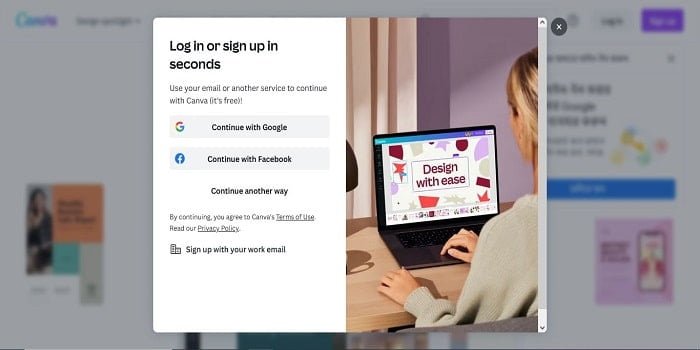
Creating a professional design with Canva is quick and easy! Start by making an account. You can sign up using your email address or a social media profile. Here you can access all of Canva’s design tools, templates, and images. Save your designs, collaborate with others, and utilize different features.
Let’s get started!
How to Sign up for a Free Account on Canva
To create professional designs, start by signing up for a free Canva account. With a free account, you’ll have access to all the features in Canva Design Editor, thousands of templates, more than 1 million stock images and graphics, and the ability to upload photos from your device or other applications.
To get started, follow these steps:
- Visit canva.com in your web browser and click Sign up or Log in from the top menu bar.
- Once you are directed to Ready to try on the Canva Login page, enter an email address or use your Google or Facebook account information if you prefer.
- You will have the option to enter a password when using an email address. For better security, choose a password that has both letters and numbers and is at least eight (8) characters long.
- Once your account is created, view your dashboard page; there you can see recent designs you have been working on and current templates others have liked — these may inspire your projects!
- Check out the Plans & Pricing options on the dashboard page to access a wider variety of creative assets, including Adobe Fonts and over one million images. You can choose from different subscription levels to find the one that best meets your needs.
Explore the Canva Dashboard
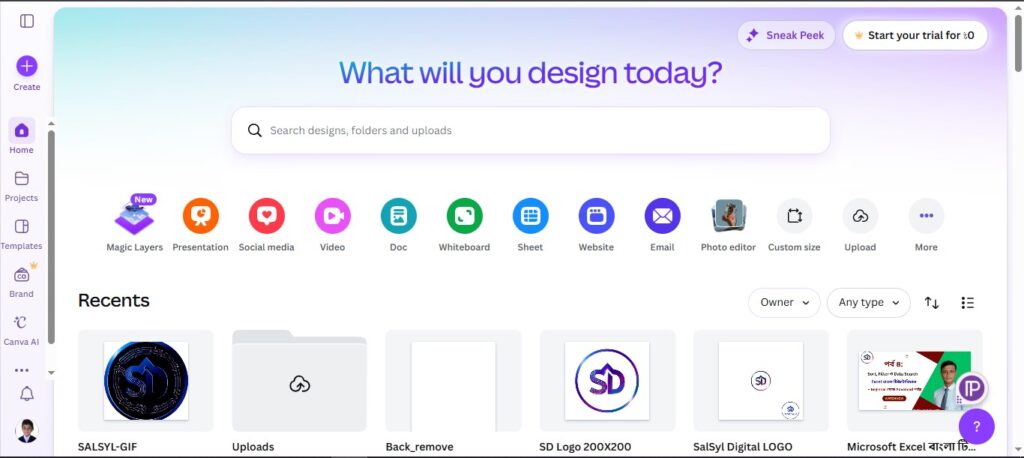
Once you have signed up for a Canva account and downloaded the app, it is time to explore the Canva Dashboard. The Dashboard is a great way to get oriented with the different design elements available to you. Here, you can customize colors, images, text styles, and more for each project—helping you create professional designs quickly and easily.
When navigating the Dashboard, you’ll find four helpful tabs:
- Projects: This tab contains your recent and completed projects, accessible from any device.
- General: View your frequently used elements, like backgrounds, fonts, and photos, available for any project.
- Brand Kit: This tab lets you create personalized graphic templates to ensure brand consistency in your digital projects.
- Color Palette: This tab provides access to pre-selected colors chosen by experts for optimal visual appeal in your designs.
Canva Basics Designs
If you’re new to design, creating professional-looking designs can feel overwhelming. Thankfully, tools like Canva make it easier than ever to get started.
Canva is a user-friendly, intuitive design platform that puts the power of professional design in your hands.
In this article, we will cover the basics of Canva design, from setting up an account to creating your first design:
- Setting up an account
- Creating your first design
How to Choose Canva Templates?

When you open Canva, you can choose from a variety of templates or create your own design from scratch. You can choose from various design types, including posters, presentations, or product labels. The options are endless.
When selecting an appropriate template for your project, consider the size of the development needed – this could help narrow down your options. When planning a design layout, consider the size and shape. Also, think about the type of content you will display. If your content is mostly text, choose a template that works well for text. If your content is mainly images, select a template designed for images.
After selecting your template and opening your workspace, customize elements like colors, fonts, and layout to match your style and project needs. Use features like gridlines to align everything perfectly and achieve a professional look.
Remember, practice makes perfect! If this is your first time using Canva, see it as a chance to learn and develop your design skills.
As long as you pay attention to detail and keep exercising patience with yourself along the way, it won’t be too long before you become an expert in designing flawless depictions of all kinds with Canva.
Customize the template
Once you have a template selected, customize it to create a professional design according to the content and graphics you are looking for. You can add text, resize, rotate, rearrange elements, and adjust various properties such as font size, color, opacity, line spacing, and more. For each feature (image or text), you can also select from a range of visual effects with drop shadows, overlays, and masks.
For artistic design elements, such as background images and banners, Canva tools like the Shape Gallery let you duplicate any compelling sections of your designs effortlessly.
For example, if your background image has an interesting pattern or gradient that you want to separate into other versions of your design. The Shape Gallery lets you quickly copy sections of the background image with just a few clicks.
Canva also provides numerous photo-editing options, ranging from simple fixes like cropping and resizing to more advanced effects such as brightness adjustments or blurring/sharpening parts of images.
In addition, Canva’s built-in filters also make it easy for users to apply creative effects to their photos by simply selecting from a range of pre-made styles.
Add images and illustrations
Choose images that fit your design layout. Use a variety of options such as photos, illustrations, and icons to enhance your results.
Photos are often overlooked as a design tool, but they can add emotion and character to any project. Images provide context to plain words or numbers. Websites like Unsplash offer free photos that you can use without copyright issues.
For a more personal touch, consider illustrations or custom drawings that match the sketch of the project you are working on. Professional illustrators can easily convey complex ideas, unlike photographs or stock images. They can also help bring articles written for webpages or documents to life with creative infographics or comics.
Icons offer to customize both the form and the content if you want something unique, from simple plans and office doodles to elaborate vector images.
Icons pack a lot of meaning into small packages, distilling vital information into something anyone can understand at a glance. There are many types of designs, including emojis, line art, and vector art. These designs can be used in various ways. When using them, choose color schemes that work well together.
Advanced Features of Canva
Craft the perfect design in Canva with advanced features like custom fonts, grid layouts, and drag-and-drop design elements. The Canva platform allows for greater creativity and customization than a template-based program does. The advanced features of Canva open up a world of possibilities for stunning visuals.
Let’s dive into the details.
Create custom shapes
Creating custom shapes can help you create professional designs that stand out from the rest. With Canva, you can efficiently draw shapes and use them as containers, text boxes, clip-art objects, and more.
Draw your shape by selecting the Custom Shape option from the left menu on the design page. In this menu, you can pick dozens of pre-made figures, such as diamonds, arrows, cogs, and more. You can also create custom ones from scratch by dragging points around or adjusting pre-made forms with Bezier curves.
The edges of your shape can be rounded or made angular, depending on your design needs. You can personalize it by selecting from various colors. Shapes will appear in the layer window, allowing you to organize and adjust opacity. To resize a figure, click on it with your mouse and drag the corner points, just like any other element in the Canva page editor.
You also have options for animating shapes that appear when hovering over them with your mouse – from rotating and making them disappear to changing sizes or direction; creating professional-quality animations is now within reach! You may also join multiple shapes concurrently using the Group or Connection tools available at the bottom of each layer window. After connecting, these elements will act as a single object, allowing easy manipulation of multiple aspects at once.
Add text effects
Adding special effects to text in Canva can be a fun way to make your designs stand out. First, select the text box you want to edit by clicking on it with your cursor to add an effect. You can find a “Text” section on the left side of your design panel, where you can adjust the font size and alignment. Further down the page, you’ll see two more sections: “Effects” and “Typography style.”
The Effects section includes options such as drop shadows, inner shadows, outer glows, highlights, emboss, tint, and sketch. These options allow you to add incredible detail to your design title text. You can customize each option by changing the fonts and colors. You can also adjust the angle or position of the shadow or glow to get the look you want for your project.
In the Typography style section, you can find several preset templates for styling titles. These templates offer different looks and fonts for various themes, like vintage and modern. You can also adjust character spacing to emphasize words in titles and headlines, giving you more creative options for your designs.
How to use the Canva animated feature?
Creating stunning animations for your website or project can now be much faster and easier with Canva’s animation feature. Animations are a great way to capture your audience’s attention and make your content more engaging. There are numerous ways you can leverage the animation feature to engage users and create dynamic experiences.
Using the animation option, you can create simple or complex animations in just a few steps. You can customize elements like duration, transition type, easing, direction, iteration count, delay, and many other options. It also has an intuitive user interface where you can set parameters such as timing functions, visibility settings, and more. With this advanced feature in your toolkit, you can easily add animated elements to your website or project.
Not only is it helpful for making websites look more lively, but it is also useful when you want the user experience to be interactive rather than static. You can add motion transitions to buttons or images when users hover over them, which creates a more exciting browsing experience. This is especially useful if you are trying to promote something on your website or app and want users to pay close attention to certain parts of the page.
How to export and share created designs with Canva
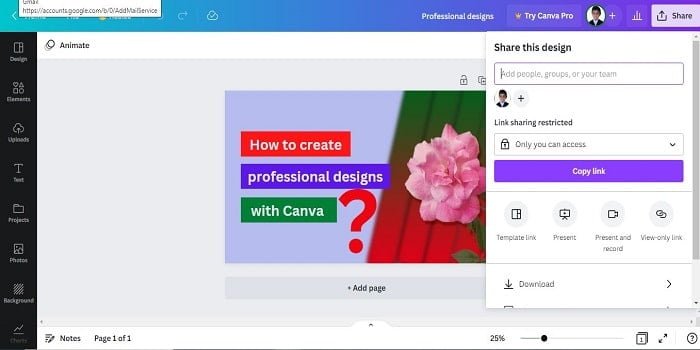
Once you’ve created your masterpiece in Canva. When exporting it for use. Canva lets you easily export your designs to multiple formats, including PNG, JPG, and PDF. You can also easily share your creations with a link or export them to various social media platforms.
Let’s go into further detail about sharing and exporting from Canva:
Export your design
Exporting your design is an essential part of creating a digital product. You can export your designs in different file formats to share, present, or save them for later. The format you choose depends on the type of graphic and the application needed to view it. For example, if you create a logo in Photoshop, export it as a PNG or TIFF. This will help keep the logo clear and scalable on various devices and screen sizes.
The process of exporting depends on the application you are using; however, they each have a similar structure. In most cases, you will find an “Export/Save as” option under the File menu at the top navigation bar (or occasionally elsewhere).
From there, make sure to choose options that fit your final product. For example, select Transparency if you’re saving as a PNG file, or change the resolution if you have that option. When you are done, click Save or Export in the bottom right corner to complete the process.
Share your design
Once you have completed your design, it is time to share it with your team and the world. There are several options available to you within Canva.
You can download files such as JPEG, PNG, TIFF, or PDF, or export them directly to other popular platforms. Social media platforms like Facebook, Instagram, and Twitter are available for exporting cloud storage like Dropbox and Google Drive.
Additionally, you can create over 20 PowerPoint slide shows, video presentations, eBooks, web stories, and more.
When exporting or downloading a design, choose the size and resolution that best meet your needs – high-resolution images are recommended for print-quality designs like postcards and posters. You can also select multiple formats when exporting your design – choose More export options while saving.
If you are working with others on a project, click Share from the dashboard to set up sharing permissions with your Canva co-editors in real-time. This is useful for teams that need to collaborate from different locations. Once everyone is satisfied with the final version of the design, press “Publish” in the Canva main dashboard to make it available on other platforms, or on websites like blogs and social media channels like Facebook pages.
Conclusion
In conclusion, using Canva to create professional designs is a great way to produce attractive, high-quality visuals without an extensive design background.
Canva also offers in-depth tutorials that help users of all experience levels get up to speed quickly and apply their skills to their real projects. With Canva’s easy-to-use drag-and-drop interface, you can start creating beautiful designs immediately. The tools also allow you to save your creations in various file formats to access them across multiple devices (Mac OS, Windows, Android, iPhone, or iPad) or share them across platforms.
By following the best practices outlined in this guide, you should be able to create professional designs with Canva quickly, efficiently, and with minimal effort.
For more, compare Canva vs Snappa to discover the best design tool for professional graphics, features, ease of use, and creativity.