
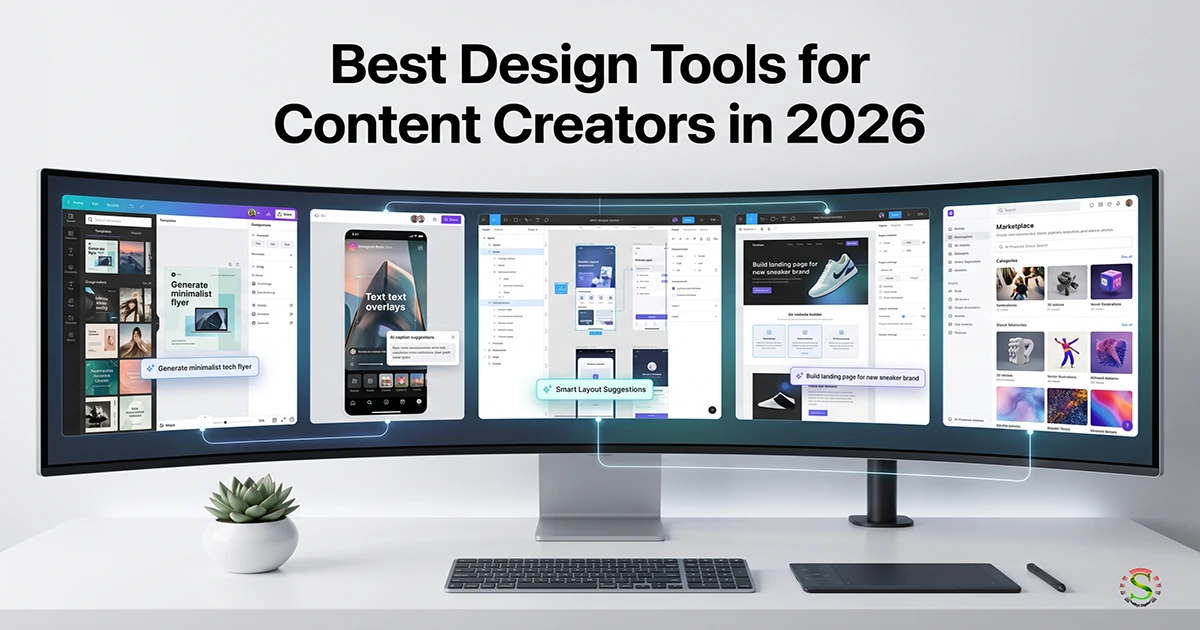
Best Design Tools for Content Creators
Creating good content is no longer just about writing. Whether you are running a blog, managing social media, creating YouTube videos, designing websites, or promoting a small business, visual content has become a major part of the job.
The good news is that you don’t need to be a professional graphic designer to create attractive content anymore.
Modern design tools are becoming smarter with AI. Instead of starting every design from a blank canvas, creators can now use AI to generate ideas, create layouts, edit images, write copy, build website sections, and even produce videos.
But with so many tools available, which ones are actually worth learning?
In this guide, we will look at some of the best design tools for content creators in 2026, including Canva, Snappa, Figma, Elementor, and Envato. More importantly, we’ll look at how AI can fit into your everyday content creation workflow.
Why Content Creators Need Better Design Tools
Content creation can be surprisingly time-consuming.
You may start with a blog post and then realize you also need:
- A featured image
- Social media graphics
- Pinterest pins
- YouTube thumbnails
- Website banners
- Infographics
- Presentation slides
- Promotional graphics
- Short videos
- Product visuals
Doing all of this manually can take hours.
This is where modern design tools make a difference.
AI can help you move from an idea to a usable first draft much faster. You can then edit, customize, and improve the result, rather than spending most of your time on repetitive design work.
The goal shouldn’t be to let AI do everything.
The better approach is to let AI handle repetitive tasks while you control the creative direction.
1. Canva – Best Overall Design Tool for Content Creators
If you want one design platform that can handle almost everything, Canva is probably the easiest place to start.
Canva has always been popular among bloggers, marketers, small business owners, social media managers, and creators because of its simple drag-and-drop interface.
But AI is changing what Canva can do.
Canva + AI
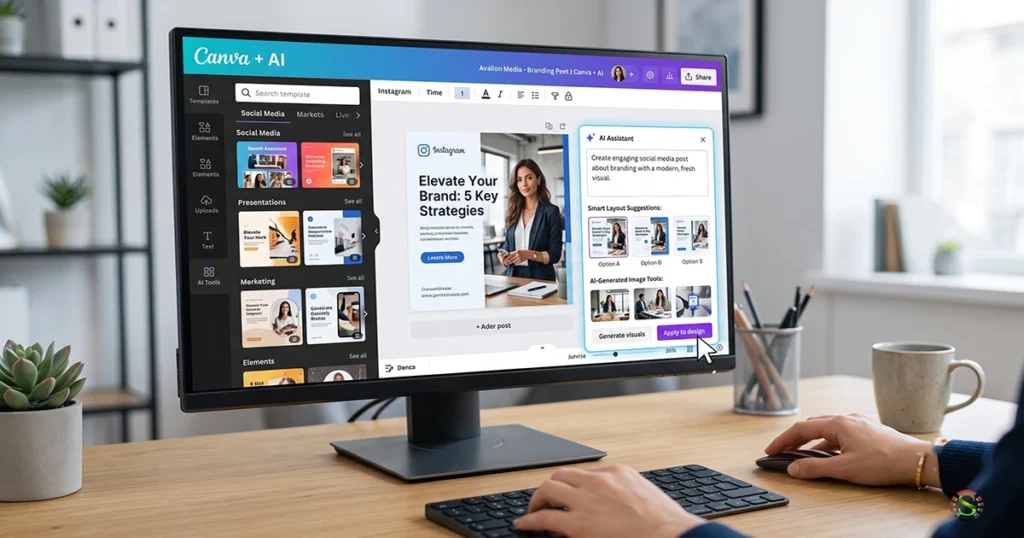
Canva’s AI ecosystem is moving beyond simple template editing. Its newer AI approach allows creators to start with an idea or prompt and move toward editable designs.
You can use AI-assisted workflows for things such as:
- Generating design ideas
- Creating visual content
- Writing or improving copy
- Editing images
- Removing backgrounds
- Creating presentations
- Resizing content for different platforms
- Developing branded content
- Creating social media graphics
The big advantage is that AI and traditional design tools work together.
You can ask AI to help with the first draft and then manually adjust fonts, images, spacing, colors, and branding.
Who Should Use Canva?
Canva is particularly useful for:
- Bloggers
- Social media managers
- Small business owners
- YouTubers
- Affiliate marketers
- Freelancers
- Digital marketers
- Beginners
If you regularly create social media posts, blog graphics, thumbnails, presentations, or promotional designs, Canva can become an everyday tool.
Canva Pros & Cons
Pros
- Very easy to learn and use
- Large collection of templates and design elements
- Powerful AI-assisted design features
- Excellent for social media and blog graphics
- Useful for presentations, videos, and marketing materials
- Good choice for beginners and small businesses
- Supports brand kits and reusable designs
Cons
- Some advanced features require a paid plan
- Popular templates can sometimes make designs look less original
- Professional designers may find some features limiting compared with advanced design software
- AI-generated designs still need human editing and brand customization
Best For: Bloggers, social media creators, small businesses, marketers, freelancers, and beginners who want an easy all-in-one design platform.
My Take
Best for: Beginners and general content creation.
Canva is the easiest choice if you want a balance between AI assistance, templates, simplicity, and manual control.
If you use Canva regularly, these 5 fascinating Canva design tips can help you create better, more effective designs.
2. Snappa – Best for Quick Social Media Graphics
Not every creator needs a complicated design platform.
Sometimes you need to create a social media graphic quickly and move on to the next task.
That’s where Snappa can be useful.
Snappa focuses heavily on fast online graphic creation. It is particularly suitable for people who need simple graphics without spending a lot of time learning advanced design software.
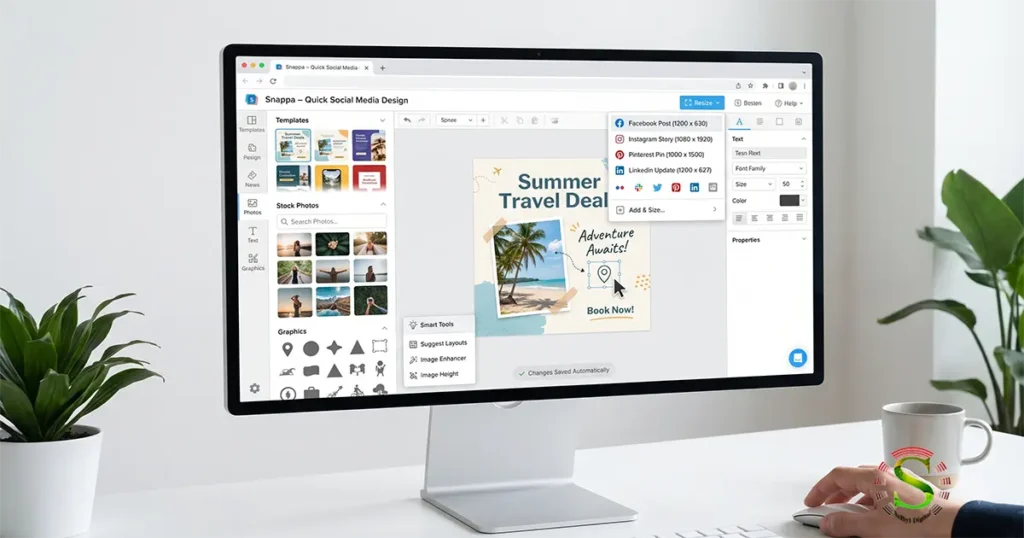
Why Snappa Is Useful
One of Snappa’s biggest strengths is simplicity.
You can quickly create:
- Blog images
- Facebook graphics
- Instagram posts
- YouTube thumbnails
- Twitter/X graphics
- Ads
- Social media banners
The interface is straightforward, which makes it appealing to creators who don’t want to deal with a steep learning curve.
What About AI?
This is where Snappa differs from some newer AI-first platforms.
Snappa’s biggest advantage isn’t an enormous generative AI ecosystem. Its strength is still speed and simplicity.
For creators who already use ChatGPT, Gemini, or another AI assistant for ideas and copy, Snappa can work nicely as the quick visual production layer.
For example:
AI → Content idea → Snappa → Final graphic
This can be a very practical workflow.
Who Should Use Snappa?
Snappa is a good choice for:
- Bloggers
- Social media managers
- Small business owners
- Affiliate marketers
- Creators who need simple graphics quickly
Snappa Pros & Cons
Pros
- Very simple and beginner-friendly interface
- Fast for creating social media graphics
- Large collection of ready-made templates
- Useful stock photo library
- Easy resizing for different platforms
- Minimal learning curve
- Good for creators who value speed
Cons
- Not as feature-rich as Canva
- Less suitable for advanced graphic design
- AI capabilities are not as extensive as AI-first platforms
- Limited for complex UI/UX or website design
- Advanced creative workflows may require another tool
Best For: Bloggers, social media managers, affiliate marketers, and small business owners who need simple graphics quickly.
My Take
Best for: Fast and simple social graphics.
If you don’t need a huge collection of advanced AI features and want to create clean graphics quickly, Snappa is worth considering.
Not sure whether Canva or Snappa is right for you? Read our detailed Canva vs Snappa comparison before choosing a design tool.
3. Figma – Best for Professional UI/UX and Collaborative Design
If Canva is designed around simplicity, Figma is much more focused on professional digital design.
It is widely used for:
- UI/UX design
- Website design
- App interfaces
- Wireframes
- Prototypes
- Design systems
- Team collaboration
For web designers and product designers, Figma is one of the most important tools to learn.
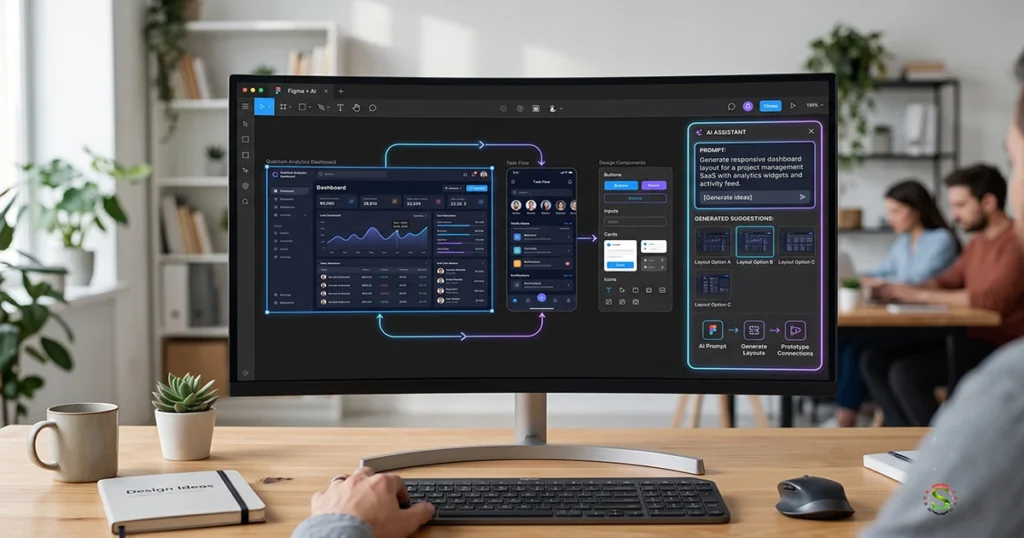
Figma Is Becoming More AI-Powered
Figma’s newer AI workflows are making the platform even more interesting for creators.
With AI-assisted features, you can explore design directions, make bulk edits, work with content, and create prototypes from prompts.
Figma Make takes the idea further by allowing creators to move from a prompt toward a working, code-backed prototype.
This changes the traditional design workflow.
Instead of:
Idea → Wireframe → Design → Prototype → Development
you can increasingly work like this:
Idea → AI-generated starting point → Design refinement → Prototype → Development
The designer still matters. In fact, the designer’s role becomes more important because someone needs to decide what should actually be built.
Why Content Creators Should Care About Figma
You may not need Figma if your only goal is to create Facebook posts.
But if you’re creating:
- Websites
- Landing pages
- SaaS products
- Mobile apps
- UI mockups
- Client website designs
- Design systems
Then Figma becomes much more valuable.
Figma Pros & Cons
Pros
- Excellent for UI/UX design
- Powerful prototyping capabilities
- Strong collaboration features
- AI-assisted design workflows are becoming increasingly useful
- Great for website and app interface design
- Useful for design systems and professional client projects
- Works well for team-based projects
Cons
- Steeper learning curve than Canva or Snappa
- Can be overwhelming for beginners
- Primarily focused on digital product and interface design
- Not the first choice for simple social media graphics
- Advanced workflows require more design knowledge
Best For: UI/UX designers, web designers, developers, agencies, startups, and creators working on digital products.
My Take
Best for: Web designers, UI/UX designers, agencies, and advanced creators.
Figma has a steeper learning curve than Canva, but it gives you far more control over professional digital product design.
4. Elementor – Best for AI-Powered Website Design
Design isn’t limited to social media graphics.
For many content creators, the website itself is the most important design project.
This is where Elementor becomes especially useful.
Elementor is a popular WordPress website builder that allows you to visually create and customize websites without having to write everything from scratch.
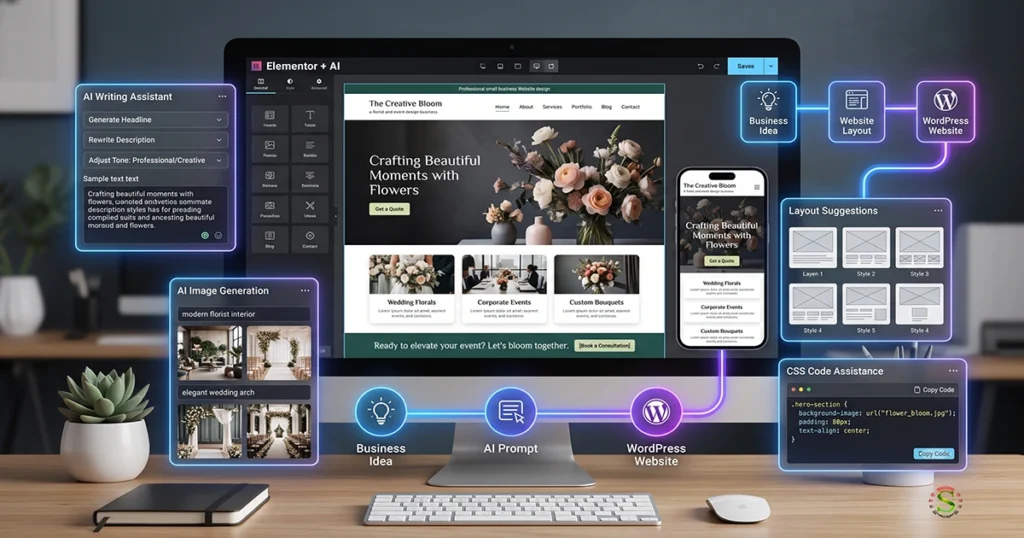
Its AI features make the workflow even more interesting.
Elementor AI
Elementor’s current AI-powered tools can help with several parts of website creation, including:
- Website layouts
- Website copy
- Images
- Design sections
- Code
- CSS
- Website planning
- Wireframes
- Site structure
Elementor’s AI Website Builder can generate a complete website structure from a prompt, including pages, layouts, copy, and visuals.
That doesn’t mean you should publish an AI-generated website without editing it.
The real advantage is getting a strong first draft quickly.
You can then customize the design, improve the content, add your brand identity, optimize SEO, and make the website genuinely useful to visitors.
Elementor Site Planner
One feature that content creators and freelancers may find particularly useful is AI-assisted site planning.
Instead of starting with an empty WordPress website, you can describe the business and website requirements and use AI to help create a sitemap and wireframe.
This can save a considerable amount of planning time.
Who Should Use Elementor?
Elementor is especially useful for:
- WordPress users
- Freelance web designers
- Small businesses
- Agencies
- Bloggers
- Digital marketers
- Entrepreneurs
Elementor Pros & Cons
Pros
- Powerful visual WordPress website builder
- AI can assist with website planning and content creation
- Can generate or assist with layouts, copy, images, and code
- Large collection of widgets and templates
- Useful for freelancers and agencies
- Allows extensive website customization
- Good option for creating small business websites without coding everything manually
Cons
- Primarily designed for WordPress websites
- Some advanced features require a paid plan
- Too many design options can be overwhelming for beginners
- Poorly optimized pages can affect website performance
- AI-generated content and layouts still require human review
- Learning advanced Elementor workflows takes time
Best For: WordPress users, freelance web designers, agencies, bloggers, entrepreneurs, and small businesses.
My Take
Best for: WordPress website design and AI-assisted website creation.
For someone who designs websites for small businesses, Elementor can become much more than a page builder. It can be part of an AI-assisted workflow from planning to launch.
Need More Elementor Design Options?
If you want to extend Elementor with more creative widgets and ready-made design features, BDThemes Element Pack can be a useful addition to your WordPress workflow.
It can help you create more flexible and visually engaging websites without starting every design from scratch.
👉 Explore BDThemes Element Pack and enhance your Elementor workflow.
5. Envato – Best All-in-One Creative Resource for AI + Assets
If you create different types of content, you probably need more than a design editor.
You may need stock photos, video templates, graphics, fonts, presentations, mockups, music, sound effects, and other creative assets.
This is where Envato stands out.
Envato + AI
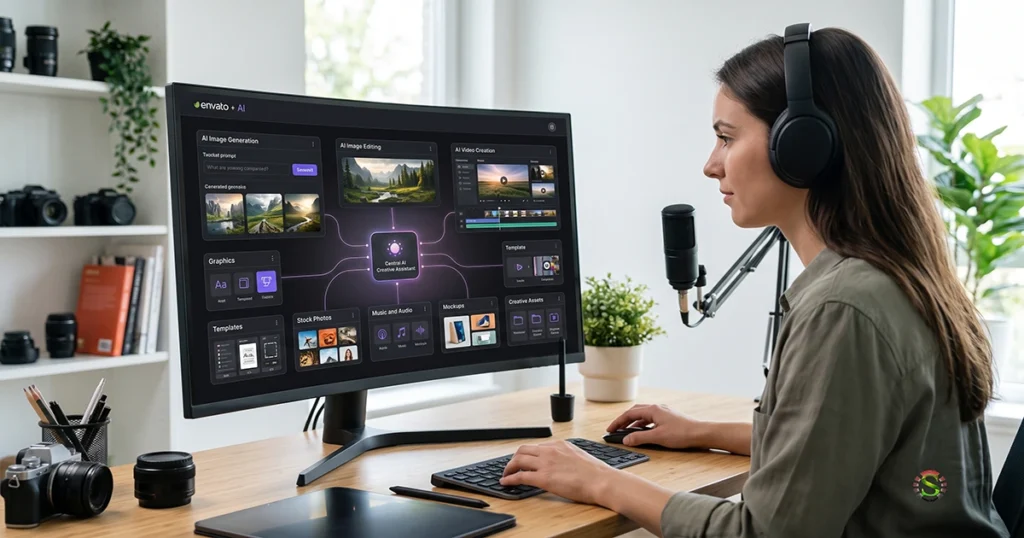
Envato has expanded beyond its traditional creative asset marketplace and now offers an increasingly broad collection of AI-powered creative tools.
Its AI ecosystem includes tools for:
- Image generation
- Image editing
- Video generation
- Voice generation
- Music generation
- Graphics generation
- Sound generation
- Mockups
That makes Envato particularly interesting for creators working across multiple content formats.
Imagine you are preparing a product promotion.
Instead of using separate platforms for everything, your workflow could look something like:
Idea → AI image → Stock assets → AI video → Music → Graphics → Final content
That’s the real value of an all-in-one creative ecosystem.
Envato for Bloggers
For bloggers, Envato can also be useful for:
- Featured images
- Blog graphics
- Presentation templates
- Infographics
- Mockups
- Fonts
- Stock photography
- Social media templates
If you create video content, using templates, stock footage, music, and AI video generation can greatly speed up production.
Envato Pros & Cons
Pros
- Huge collection of creative assets
- Templates for websites, presentations, graphics, and videos
- Stock photos, video, music, fonts, and other resources
- Increasing range of AI-powered creative tools
- Useful for both beginners and professional creators
- Can speed up image, video, audio, and design production
- Excellent resource for creators working across multiple content formats
Cons
- The huge library can make it difficult to choose the right asset
- Subscription cost may not make sense for creators with occasional needs
- Downloading too many templates can lead to designs that look less unique
- AI-generated content still needs editing and quality control
- Not primarily a single-purpose design editor like Canva or Figma
Best For: Content creators, video creators, bloggers, marketers, designers, agencies, and anyone who needs a wide range of creative assets.
My Take
Best for: Creators who need a wide range of creative assets and AI generation tools.
If your content workflow includes images, videos, audio, templates, and other creative assets, Envato is one of the most versatile options on this list.
Still deciding between Envato and Canva? Our guide Envato vs Canva: Which is Better for Designers takes a closer look at how the two platforms compare.
Ready to Create More?
If you need professional templates, stock assets, graphics, videos, fonts, and AI-powered creative tools in one place, Envato Elements can be a useful addition to your content creation workflow.
👉 Explore Envato Elements and discover creative resources for your next project.
Canva vs Snappa vs Figma vs Elementor vs Envato
Choosing the right tool depends on what you actually create.
| Tool | Best For | AI Importance | Learning Curve |
| Canva | General content & social graphics | ⭐⭐⭐⭐⭐ | Easy |
| Snappa | Quick social graphics | ⭐⭐⭐ | Very Easy |
| Figma | UI/UX & web design | ⭐⭐⭐⭐⭐ | Medium–Advanced |
| Elementor | WordPress websites | ⭐⭐⭐⭐⭐ | Medium |
| Envato | Creative assets + AI | ⭐⭐⭐⭐⭐ | Easy–Medium |
The important thing to remember is that these tools aren’t necessarily competitors.
They solve different problems.
A content creator could realistically use several of them together.
For creators who need ready-made branding and video content, you may also want to explore our guide to Envato Placeit for Branding & Videos.
My Recommended AI Design Workflow for Content Creators
You don’t need to choose only one tool.
A better approach is to build a workflow.
For example:
Step 1: Generate the Idea
Start with your content topic, audience, and objective.
Use AI to brainstorm:
- Headlines
- Content angles
- Visual concepts
- Social media ideas
- Video concepts
Step 2: Create the Main Design
Use Canva for general graphics or Figma for more advanced digital design.
Let AI help you create the first version.
Step 3: Build Your Website
If the content needs a website or landing page, use Elementor.
AI can help with the initial structure, copy, images, and layout.
Step 4: Add Creative Assets
Use Envato when you need stock images, templates, fonts, video assets, music, or AI-generated creative content.
Step 5: Create Social Media Versions
Resize and adapt the main content for Facebook, Instagram, Pinterest, LinkedIn, YouTube, or other platforms.
Step 6: Human Editing
This is the step many people forget.
Don’t publish everything exactly as AI generates it.
Check:
- Branding
- Typography
- Spelling
- Image quality
- Layout
- Accuracy
- Readability
- Originality
- Mobile appearance
AI can give you a starting point. Your judgment makes the content better.
Which Design Tool Is Right for You?
There is no single design tool that is perfect for every content creator. The right choice depends on what you create and how much control you need.
Choose Canva if you want an easy all-in-one solution for social media graphics, blog images, presentations, and marketing content.
Choose Snappa if speed and simplicity are more important than advanced features.
Choose Figma if you work with websites, apps, UI/UX, prototypes, or digital products.
Choose Elementor if your main goal is to build and manage WordPress websites with an increasingly AI-assisted workflow.
Choose Envato if you need a large collection of templates, stock assets, video resources, audio, graphics, and AI-powered creative tools.
For many creators, the best solution isn’t choosing only one platform. A combination of tools can create a much more efficient workflow.
For example, a blogger might use Canva for social graphics, Envato for creative assets, and Elementor for the website. A web designer might combine Figma for interface design, Elementor for WordPress development, and Envato for templates and assets.
The best tool is ultimately the one that fits your workflow—not necessarily the one with the longest feature list.
Final Thoughts
The biggest change in design isn’t that AI is replacing designers.
It’s that AI is changing how designers and content creators work.
Tasks that once required hours can now be completed much faster. A blank canvas can become a starting point. A rough idea can become a layout. A simple prompt can become a visual concept.
But good content still needs human creativity.
AI doesn’t automatically understand your audience, your brand, your business goals, or what makes a piece of content genuinely useful.
That’s why the best approach is not to replace creativity with AI.
It’s AI + creativity.
If you are a content creator in 2026, learning to combine AI with tools like Canva, Snappa, Figma, Elementor, and Envato can give you a much faster, more flexible content production workflow.
The tools will continue to change.
The ability to turn an idea into useful content will remain the most valuable skill.