
Canva and Figma are two of the most popular online design tools. But which one is better for design? In this article, we’ll compare Canva vs. Figma to help you decide which tool is better for your needs.
Before diving deep into this article, I request that you know about Canva Vs. Envato and PlaceIt vs. Canva.
Overview of Canva and Figma
Canva and Figma are two popular design tools, each with distinct features and functionalities. An overview of them is the perfect way to discover their capabilities and benefits for users.
For starters, Canva is user-friendly and perfect for everyone, from beginners to professionals. It provides a vast library of templates and elements for creating social media posts, presentations, and more.
Figma is an advanced design software made for professional UI designers. It has a collaborative platform allowing teams to work together in real time for smooth communication and efficient project management.
Consider your requirements and the required level of expertise before deciding between Canva and Figma. They may have some similarities, but they’re as different as a paint-by-numbers kit and a Picasso painting.
Some Facts About Canva vs. Figma
- ✅ Canva and Figma are both popular design tools with different applications.
- ✅ Canva and Figma are both famous design tools with various applications.
- ✅ Figma is primarily used for UX/UI design but can also be used for presentation design and animations.
- ✅ Canva features an intuitive interface that offers easy-to-understand tools and a wide range of tutorials.
- ✅ Figma has a more complex interface and may require external tutorials for complicated designs.
The Key Differences in Features and Functionality

Canva and Figma are two popular design tools. They have different points of features and functionality. To get a better understanding of these distinctions, check out the comparison table below:
| Features | Canva | Figma |
|---|---|---|
| User Interface Designing | User-friendly and intuitive UI | Powerful UX-focused interface |
| Presentation Features | Various presentation tools | Advanced presentation capabilities |
| Drawing Tools | Range of drawing tools | Robust drawing tools suite |
| Editing Tools | Comprehensive editing toolkit | Powerful editing functionalities |
| Pen Tool | Precision drawing | Precise control over paths |
| Line Tool | Easy creation of lines | Creating precise and complex lines |
Recent data shows that these tools are becoming increasingly popular with designers. The rising user base is a testament to their effectiveness and importance in the design globe.
Quick Comparison
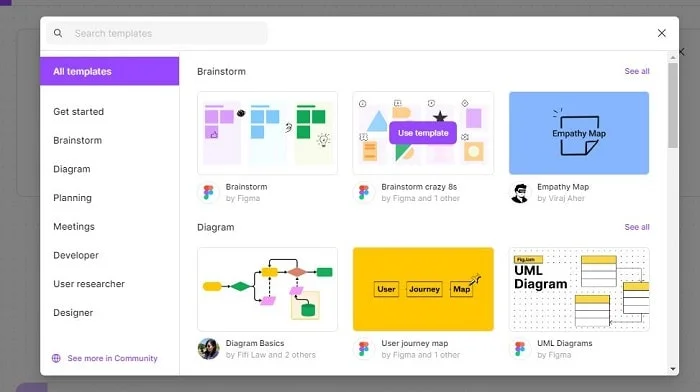
Canva and Figma are two popular design tools. Comparing them? Consider these key factors.
Canva’s user-friendly interface and template library are great for creating attractive designs quickly.
Figma offers top-notch collaboration tools and advanced design features, making it a favorite among many pros.
Each tool has its pros and cons. Picking one? It depends on your needs and wants.
Pros and Cons of Canva vs. Figma
When you are going to create graphic designs, you will see that there are a plethora of tools available in the market today.

Canva and Figma are two of the most popular ones out there. They both offer unique features and benefits for designers and non-designers alike. Whether you are creating graphics for social media, marketing collateral, or any other visual representation of your brand or company, it’s necessary to understand the pros & cons of using Canva vs. Figma.
Latest Data on Canva and Figma Comparison
Canva and Figma have become two of the most well-known design software options. This article examines their features, usability, and effectiveness using the latest data.
The comparison table below shows the fundamental differences between Canva and Figma:
| Feature | Canva | Figma |
|---|---|---|
| Usability | User-friendly interface with drag-and-drop | Robust design tools for advanced users |
| Collaboration | Limited collaborative features, mainly for individual use | Extensive collaboration capabilities with real-time design |
| Templates | The vast library of pre-designed templates | Limited template options, but flexible for custom design |
| Pricing | Free and subscription-based plans, plus premium elements | Subscription-based model; different plans for individual or teams |
When examining Canva and Figma, it’s clear that each has its unique benefits.
Canva‘s user-friendly interface and extensive template library make it ideal for those looking for convenience and variety.
On the other hand, Figma is great for professional designers and teams, as it offers advanced design tools and collaboration features.
User Experience (UX)
When it comes to user experience (UX), Canva and Figma offer distinct advantages. In this section, we’ll explore the learning curve of both platforms and delve into their user interfaces.
Whether you’re an experienced designer or just starting, understanding how these aspects differ can affect your overall satisfaction with the design process and tools. So let’s dive in and see which offers a more intuitive and user-friendly experience.
Learning Curve
Learning curves are essential for using design tools. Canva and Figma offer different learning experiences. Canva has a user-friendly interface with intuitive features, making it great for beginners.
Figma is better for professionals because it has more advanced features. However, using these features takes more time and effort.
Canva is easy to learn due to its simple design. Users can quickly create attractive designs using pre-made templates and drag-and-drop features.
The platform also provides tutorials and guides to help users understand its features.
Figma’s learning curve may be steeper due to its more advanced tools. Designers should spend time learning this skill. It can be beneficial for those working on complex design projects.
Let’s explore the user interface of Canva and Figma!
User Interface (UI)
The user interface in Canva and Figma is crucial for a smooth design experience. A good UI is important for any software or platform because it impacts how users feel about it.
Canva and Figma are both well-known design tools with powerful features. They enable the creation of unique visuals, websites, and user interfaces.
Canva’s UI is made to be user-friendly. It comes with plenty of templates, fonts, and graphics. With drag-and-drop, users can easily arrange and personalize elements.
The UI lets people use the software without trouble so that they can focus on their creative work.
Figma’s UI is powerful and easy to use. It was made to boost collaboration, perfect for design teams. Real-time editing allows people to view changes straight away. Figma has tools for interactive prototypes, animations, and complex UIs.
Its user interface helps teams design, get feedback, and make changes quickly. This allows them to work faster and improve their results.
Canva and Figma prioritize delivering an excellent UI. It lets users easily navigate the software and create fantastic designs.
Canva and Figma‘s user interfaces empower users and showcase their creativity, whether used for social media graphics, webpages, or UI.
User Interface Designing
User interface design with Canva and Figma involves numerous drawing tools.
Canva has pre-designed templates and a comprehensive element library.
Figma offers customizable components that you can use across multiple projects.
Navigation is easy with both platforms, plus grids, alignment guides, and snap-to-grid features. Furthermore, real-time collaboration enables many users to work on a design simultaneously.
To summarize, user interface designing in Canva and Figma offers essential tools. The tools you can use include drawing, editing, pen, and line tools, templates, and element libraries. Plus, they provide an intuitive interface with collaborative features for efficient design.
Import and Export
When it comes to importing and exporting in the design realm, Canva and Figma each have their unique offerings. In this section, we will dive into the specifics of importing media and explore the various exported formats supported by both platforms. So, get initiated to discover how these design powerhouses handle the crucial tasks of exporting and importing for your creative projects.
Import Media
Importing media is essential for design tools like Canva and Figma. Users can easily incorporate external images, videos, and other media files into their projects.
The table below provides an overview of the import media features in both Canva and Figma:
| Feature | Canva | Figma |
|---|---|---|
| Media Types | Images, Videos, Audio | Images |
| Supported Formats | JPEG, PNG, SVG, MP4, MOV, MP3 | JPEG, PNG |
| Import Options | Upload from a device, Import from Facebook or Google Photos | Drag and drop from the local document framework |
| Organizer Tools | Media library for simple access and organization | – |
Furthermore, both Canva and Figma have advanced options for importing media. Canva has templates with pre-loaded images that can be replaced with custom ones.
On the other hand, Figma allows users to import assets directly from design software like Sketch or Adobe XD.
Here are a few Pro tips for the effective use of importing media in these design tools:
- Organize your media: Take advantage of the organizer tools available in Canva or other similar platforms. This saves time when searching for specific media elements later on.
- Select the correct file formats: Consider your project’s purpose and requirements when importing media files. Use appropriate file formats, such as PNG or SVG, for images when clarity or scalability is needed.
- Limit file sizes: Large media files can slow loading times and affect performance. Resize or optimize your files before importing them into your designs.
Designers can easily create appealing projects using the media import features in Canva and Figma. Following these tips will help.
Exported Formats
Canva provides a selection of export formats. Designs can be preserved as image files such as JPG, PNG, and PDF. Plus, visuals can be exported as editable files, such as Canva format (CAN) or PowerPoint (PPTX). This makes sharing and using designs more flexible.
Figma also offers a variety of export formats. Designs can be saved and exported as image files such as PNG, JPG, SVG, and PDF. Moreover, Figma allows designers to export designs as code snippets for developers to use. This simplifies the design-to-development process and strengthens collaboration between designers and developers.
Though both Canva and Figma provide a range of export formats, each platform may have its own features and boundaries. It’s a good idea to check the export settings on each platform. This will help you choose the best format for your needs.
Pricing and Plans
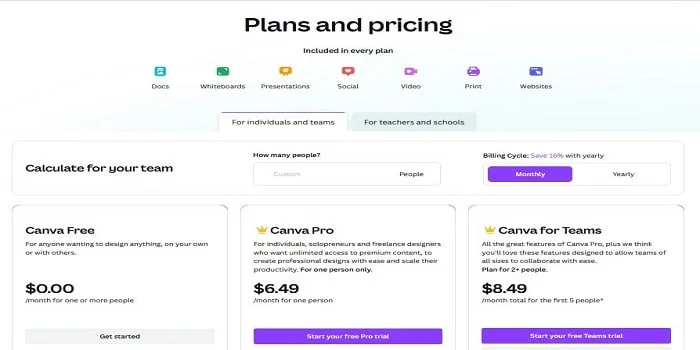
Canva and Figma provide different plans and pricing options to suit various design needs. Explore the availability of a free version, the features of Canva Pro, and the benefits of Canva for Teams, all of which provide unique options for designers.
Canva Free
Canva offers a free version of its design platform, allowing users access to basic features and templates without spending a cent. This means individuals and businesses can create great designs without paying for a subscription or membership.
Keep this in mind! However, the free version has some limitations compared to Canva Pro. For example, you may find fewer premium templates or advanced editing options.
Still, the free version lets you explore Canva‘s features before upgrading to a paid plan.
Upgrade to Canva Pro and unlock your creativity with its advanced design features!
Canva Pro
Canva Pro offers many useful features for professionals wanting to take their design projects to the next level.
Design mobile interfaces that work with built-in devices and let you preview them on different screen sizes. They are compatible with Android and desktop computers, making it easy to switch between devices.
Leverage unlimited cloud storage to keep files organized and available. Don’t forget Canva for Teams.
Unlock your creativity and elevate your designs by visiting the Canva Pro free trial today!
Canva for Teams
Canva for Teams is an effective platform that enables ongoing collaboration on design projects. Team administrators can easily assign roles and manage user access.
Brand consistency is key. Canva for Teams provides approved brand assets and templates for all team members.
Workflow management tools are built into Canva. Streamlining project organization and tracking progress. Enhanced security measures, including data encryption, protect designs.
Plus, Canva integrates with cloud storage platforms. Google Drive, Dropbox, etc. It supports importing media from various sources and exporting designs in multiple formats.
In short, Canva for Teams is the top choice for design teams. It boosts teamwork efficiency and ensures brand consistency. Streamlining workflow management within an organization.
Figma Free
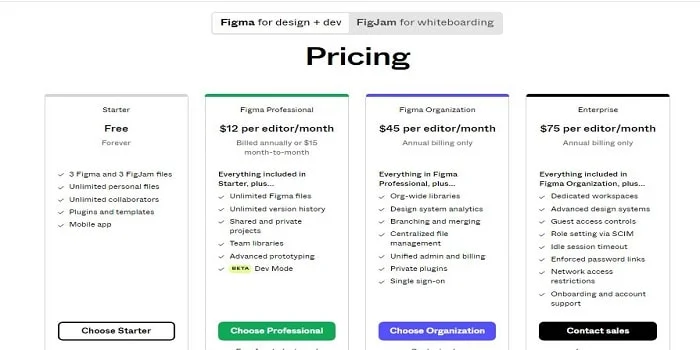
Figma is a popular design tool for individuals and teams. One reason for its popularity is its pricing model. Figma offers both free and paid plans to meet the needs of designers and developers. The free plan allows users to explore different features and learn “how to use the tool without spending money.”
Figma paid plans
Figma for Design and Dev Professional is an excellent option for businesses that require advanced features and support. With the monthly plan, users get a license to features like version history, designer handoff, and a customizable design system. See the pricing list here.
FAQs
1. What are the key differences between Canva and Figma?
Canva and Figma have several key differences. Canva is a browser-based design tool primarily used for social media design. It offers a wide range of templates and customization options.
Figma is a design tool for creating user interfaces. It is more complex and is best for professional UI design. Figma helps you make prototypes of websites and apps. It offers real-time collaboration and integrates easily with various apps.
2. Can I use Canva and Figma for personal use?
Yes, you can use Canva and Figma for personal use. Both offer free plans ideal for individual projects. Just check their terms of service for any restrictions.
3. Can I access Canva and Figma through a browser-based design tool?
Yes, you can access both Canva and Figma through a browser-based design tool.
4. Can I collaborate with others in real-time using Canva and Figma?
Yes, both Canva and Figma offer real-time collaboration features.
Canva has a paid Teams option for sharing files and working on the same projects.
On the other hand, Figma allows for live collaboration, where changes and edits can be seen in real-time. Figma also has the advantage of integrating with Slack channels for communication.
5. DO Canva and Figma offer additional fonts for design customization?
Yes, both Canva and Figma offer additional fonts for design customization. Canva provides a library of fonts and allows users to upload custom ones with a Pro subscription. Figma provides a variety of fonts and allows you to import custom fonts from your operating system or Google Fonts.
6. Can I use Canva and Figma for a variety of design purposes?
Yes, you can use Canva and Figma for various design purposes, but they have different strengths. Canva is ideal for quick graphics and marketing materials due to its user-friendly interface and templates. Figma is better suited for UI/UX design, offering powerful collaboration features for wireframes and prototypes. Choose based on your specific needs!
Conclusion
Canva and Figma are effective design tools, each with its own strengths. Your choice should depend on your specific design needs and preferences.
When deciding between Canva and Figma, consider pricing, compatibility, and design requirements. Dive into both tools and discover which one aligns perfectly with your design workflow and objectives. Once you’ve identified the best fit, seamlessly integrate it into your design process to elevate your creations to new heights!