
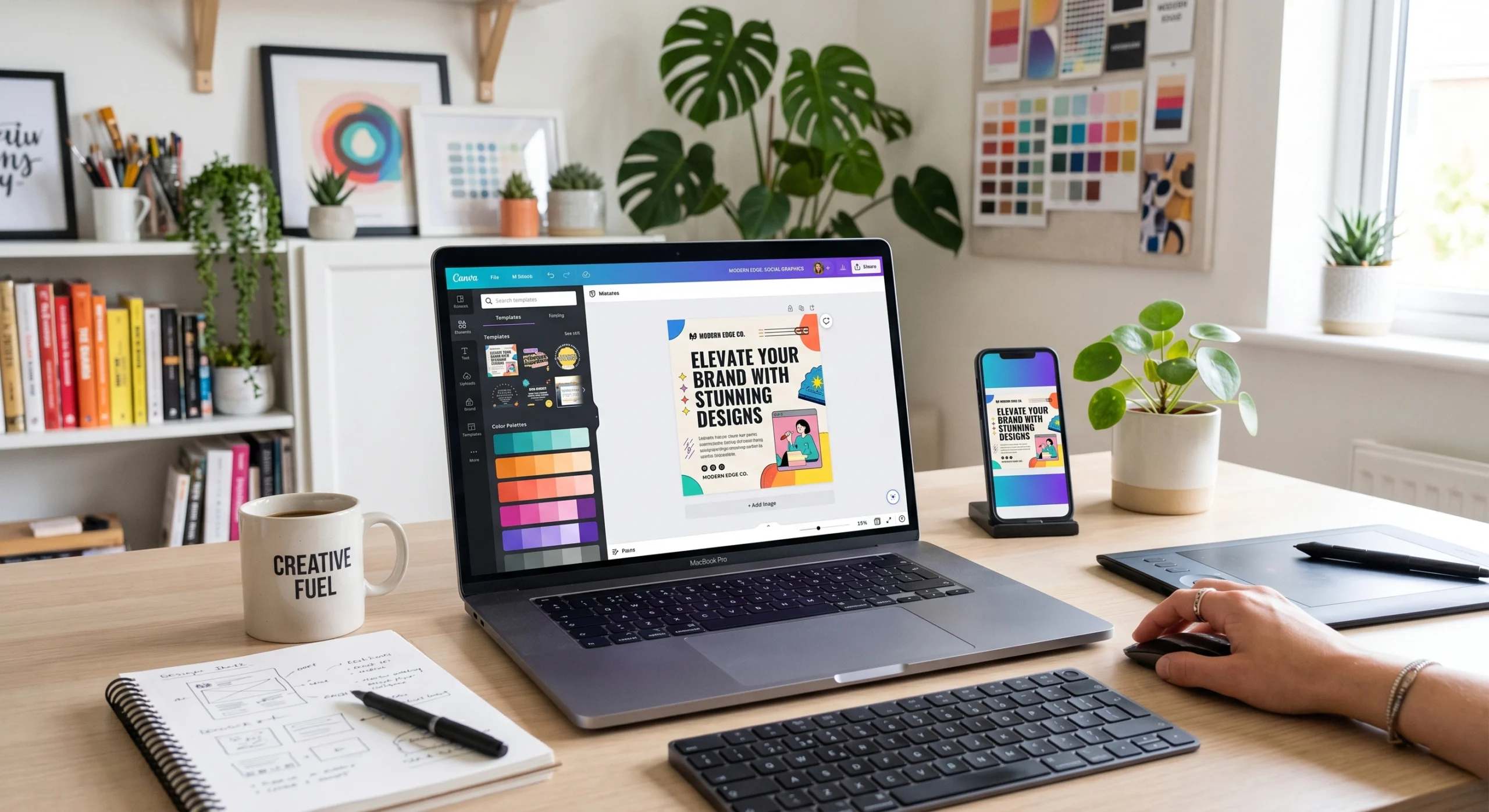
Creating professional graphics used to require advanced design skills and expensive software. Today, platforms like Canva have made graphic design much easier for beginners, freelancers, bloggers, and small business owners. Many people want to create Stunning Designs for social media, websites, presentations, and marketing materials, but they often struggle with colors, layouts, fonts, and creativity.
The good news is that Canva provides simple tools that help anyone create high-quality visuals in just a few minutes. Whether you are designing for your business, blog, YouTube channel, or social media page, Canva offers templates, drag-and-drop features, and creative elements that make the process easier.
In this guide, you will learn 10 easy steps to create Stunning Designs on Canva like a professional. These simple tips will help you improve creativity, save time, and design content that looks modern, attractive, and professional.
Do you know! How to create a professional design with Canva?
Stunning Designs with Canva
Canva is one of the most popular online graphic design platforms because it is simple, fast, and beginner-friendly. You do not need advanced graphic design knowledge to use it. Canva provides thousands of ready-made templates for:
- Social media posts
- Blog graphics
- Business presentations
- Flyers and posters
- Logos and banners
- YouTube thumbnails
- Pinterest pins
The drag-and-drop editor allows users to customize designs quickly. You can change colors, fonts, images, and layouts without technical skills.
1. Choose the Right Canva Template
The first step to creating Stunning Designs is choosing the right template. Canva provides thousands of professional templates designed for different purposes.
For example:
- Instagram post templates
- Facebook cover templates
- Business presentation templates
- Pinterest graphic templates
- YouTube thumbnail templates
Using a professional template saves time and gives your design a polished look. Choose a template that matches your brand style and audience.
Pro Tip
Do not overcrowd your design. Start with a clean and simple layout.
2. Use High-Quality Images
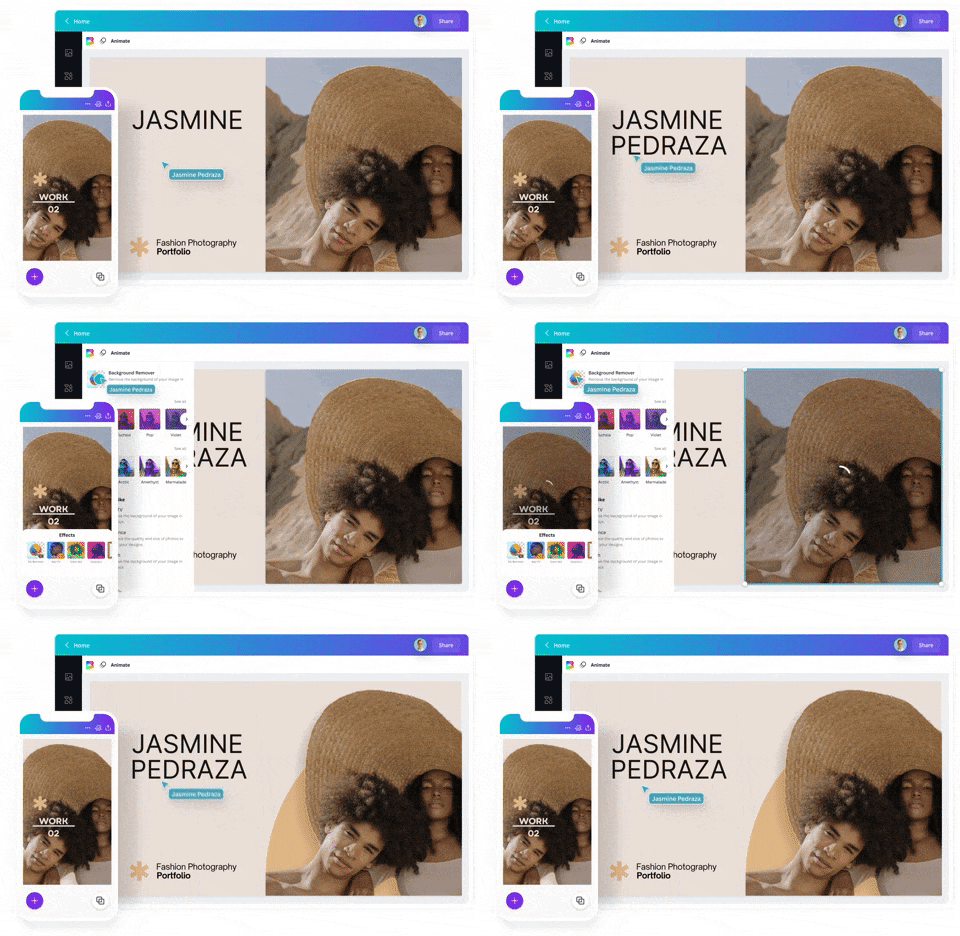
Images play a major role in creating Stunning Designs. Blurry or low-quality photos can make your content look unprofessional.
Canva provides:
- Free stock photos
- Premium images
- Background images
- Transparent PNG elements
You can also upload your own photos for branding purposes.
Best Practices for Images
- Use bright and clear photos
- Match images with your content topic
- Avoid too many images in one design
- Keep image style consistent
Professional visuals help attract more attention and improve engagement.
3. Select Professional Fonts
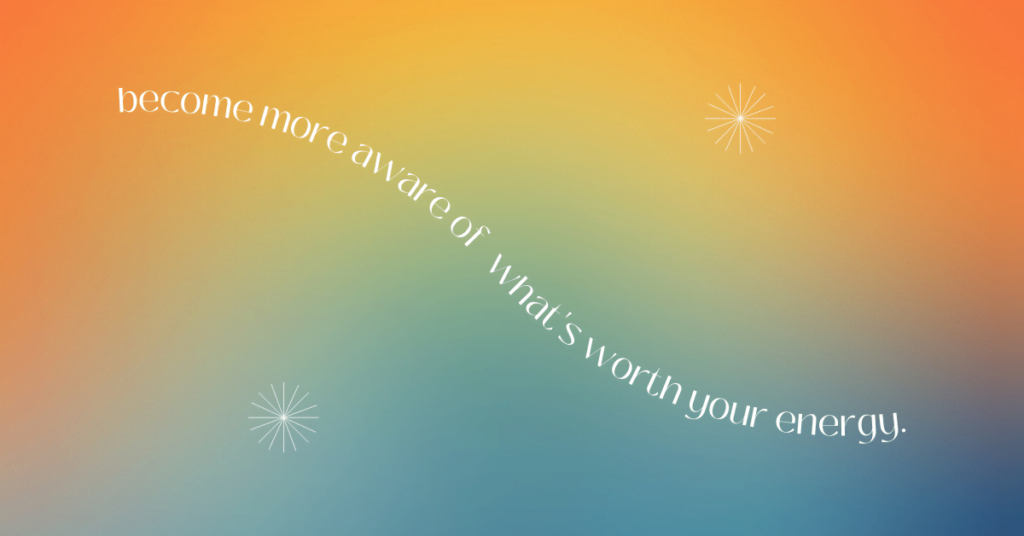
Fonts are very important in graphic design. The wrong font combination can make your design difficult to read.
Canva offers many stylish and professional fonts for different design styles.
Font Tips for Stunning Designs
- Use simple fonts for readability
- Combine only 2 or 3 fonts
- Use bold text for headings
- Avoid overly decorative fonts
Examples of good Canva font combinations:
- Montserrat + Open Sans
- Poppins + Lato
- Playfair Display + Roboto
Readable typography makes your design look clean and modern.
4. Use Brand Colors Consistently
Colors create emotion and brand identity. Consistent colors make your design more professional.
If you have a business or blog, use your brand colors in all designs.
Popular Color Strategies
- Blue = Trust and professionalism
- Red = Energy and attention
- Green = Growth and freshness
- Black = Luxury and elegance
Canva allows you to save brand colors using the Brand Kit feature.
Pro Tip
Use only 2–4 main colors to avoid visual confusion.
5. Keep Your Design Simple and Clean
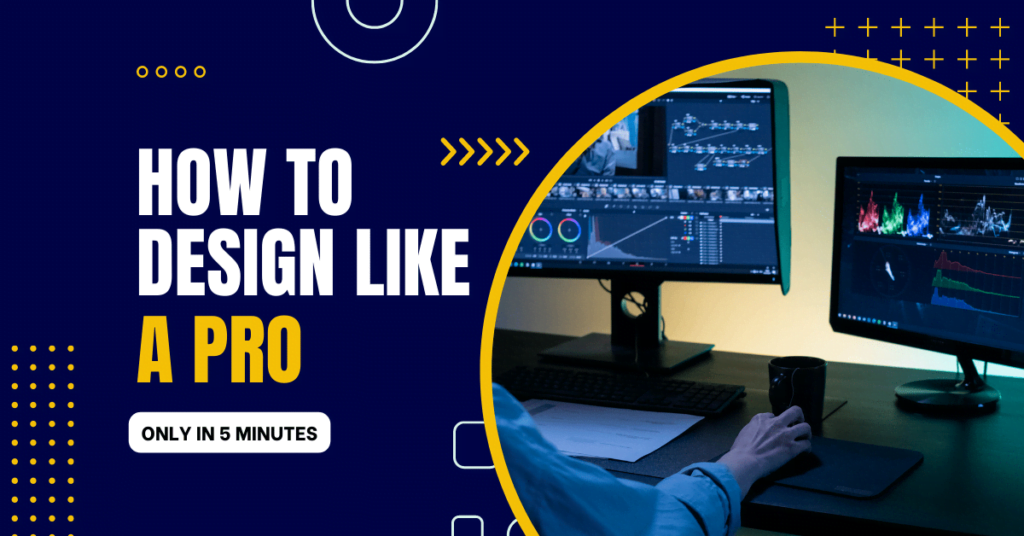
One of the biggest mistakes beginners make is adding too many elements.
Professional Stunning Designs are usually:
- Clean
- Minimal
- Easy to understand
- Well organized
Leave enough white space between text and images. A simple design often looks more attractive than a crowded one.
Simple Design Rules
- Use fewer elements
- Focus on one message
- Maintain alignment
- Avoid unnecessary decorations
Minimal designs improve user experience and readability.
6. Add Icons and Graphic Elements
Icons and graphic elements help make designs more attractive and informative.
Canva includes:
- Social media icons
- Business icons
- Shapes and lines
- Stickers and illustrations
- Charts and infographics
Use icons to explain ideas visually.
Best Practices
- Use matching icon styles
- Keep icon sizes balanced
- Avoid overusing graphics
Well-placed elements improve visual communication.
7. Create Strong Visual Hierarchy
Visual hierarchy helps viewers understand important information quickly.
This means:
- Headlines should be larger
- Important text should stand out
- Supporting information should be smaller
Example
- Main heading = Large bold font
- Subtitle = Medium font
- Description = Smaller font
This structure improves readability and creates more professional Stunning Designs.
8. Use Canva Effects and Features
Canva includes many powerful design tools that improve creativity.
Some useful Canva features include:
- Background remover
- Text effects
- Shadows and glow effects
- Photo filters
- Animation tools
- Magic resize feature
These tools help make your designs more dynamic and professional.
Pro Tip
Use effects carefully. Too many effects can make designs look messy.
9. Optimize Designs for Different Platforms
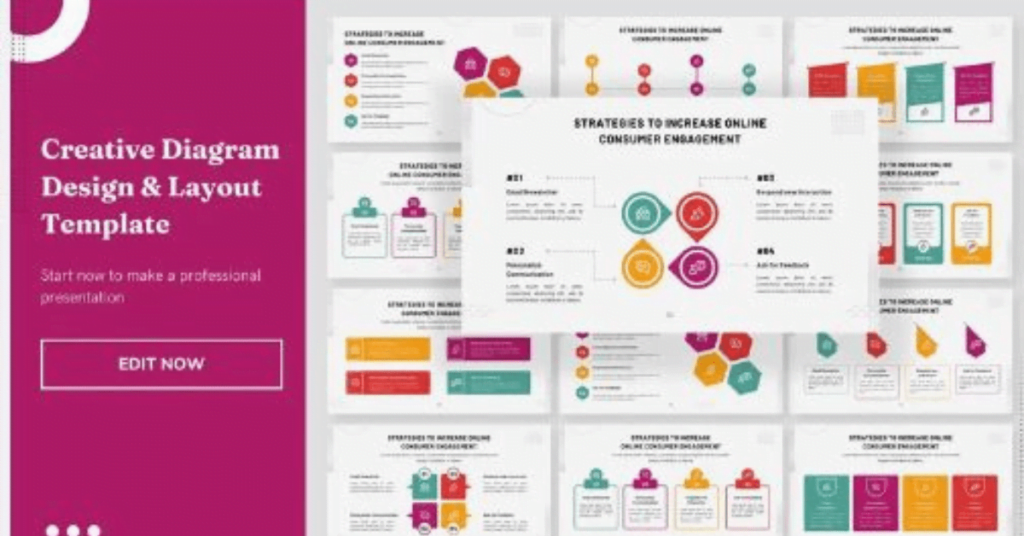
Different platforms require different design sizes.
For example:
- Instagram posts = Square format
- YouTube thumbnails = Landscape format
- Pinterest pins = Vertical format
- Facebook covers = Wide format
Canva automatically provides correct dimensions for different platforms.
Optimized sizes improve quality and user engagement.
You may also like our tutorial on How to Create Social Media Graphics.
10. Review and Download in High Quality
Before publishing your design, always review everything carefully.
Check:
- Spelling mistakes
- Alignment issues
- Color consistency
- Image quality
- Font readability
After reviewing, download your design in high quality.
Best File Formats
- PNG = Best for graphics
- JPG = Smaller file size
- PDF = Print designs
- MP4 = Animated designs
High-quality exports make your content look professional everywhere.
Common Mistakes to Avoid in Canva Designs
Many beginners make simple mistakes that reduce design quality.
Avoid These Mistakes
- Using too many fonts
- Adding excessive colors
- Overcrowding layouts
- Using blurry images
- Ignoring spacing and alignment
Fixing these small issues can greatly improve your designs.
Benefits of Using Canva for Stunning Designs
Canva offers many advantages for beginners and professionals.
Key Benefits
- Beginner-friendly interface
- Thousands of templates
- Fast design process
- Cloud-based access
- Affordable pricing
- Team collaboration tools
- Mobile app support
These features make Canva one of the best online graphic design platforms available today.
Best Canva Design Ideas for Beginners
If you are just starting, try creating:
- Instagram quotes
- Pinterest graphics
- Blog featured images
- Business cards
- YouTube thumbnails
- Social media ads
Practicing simple projects helps improve creativity and design skills.
Many creators and businesses use Canva because it offers easy tools for making professional graphics quickly.
👉 If you want an easy and powerful design platform, you can start using Canva today to create Stunning Designs in minutes.
Unlock Your Creative Potential with Canva Design School
Canva Design School offers a treasure trove of resources for anyone looking to enhance their design skills, whether you’re a complete beginner or a seasoned pro. With a variety of free courses, tutorials, and tips, Canva Design School empowers you to create stunning visuals and master the art of design at your own pace.
From learning the basics of layout to exploring advanced graphic techniques, you’ll find everything you need to unlock your creativity.
Dive into the world of design today by visiting Canva Design School.
Conclusion
Creating Stunning Designs on Canva becomes much easier when you follow the right design principles and use the platform’s creative tools wisely. Whether you are designing for social media, blogs, marketing, or business branding, Canva offers everything needed to create professional-quality visuals without advanced skills.
By choosing the right templates, using quality images, maintaining consistent colors, and keeping your layout clean, you can improve your designs significantly. The more you practice, the better your creativity and design confidence will become.
Start applying these easy Canva tips today and turn your creative ideas into eye-catching and professional Stunning Designs that attract attention and grow your online presence.
FAQ Section
What is Canva?
Canva is an online graphic design platform that helps users create professional visuals using templates, images, fonts, and drag-and-drop tools.
Is Canva good for beginners?
Yes, Canva is very beginner-friendly and does not require advanced design skills.
Can I create Stunning Designs for free?
Yes, Canva offers many free templates, photos, and design elements.
What can I design on Canva?
You can create social media posts, presentations, business cards, logos, flyers, YouTube thumbnails, and more.
Why are Stunning Designs important?
Stunning Designs help attract attention, improve branding, increase engagement, and create a more professional online presence.